
You set up Google Family Link, configured the daily limit and bedtime, and yet the phone is still glowing at 10pm. Before assuming your child has outsmarted it, know that Family Link has a handful of well-known failure modes — most of them fixable in minutes once you know which one you are looking at.
Here are the nine that account for nearly every "Family Link is not working" complaint, roughly in order of likelihood.
1The Child's Device Hasn't Synced
Family Link rules travel from your phone to your child's over the internet. A child device that has been offline — or asleep with background data restricted — keeps running yesterday's rules until it syncs.
Fix
Make sure the child's device has a connection, then open the Family Link child app (or Settings, then Google, then Parental controls) to force a check-in. Rule changes are not instant even in good conditions; give them a few minutes before concluding something is broken. If the phone still will not sync or lock, our Family Link not syncing or locking guide goes deeper.
2Battery Optimization Is Killing the Supervision
Aggressive battery managers — especially on some manufacturers' Android builds — can suspend Family Link's background processes, and enforcement gets flaky with them.
Fix
On the child's device, open Settings, then Apps, then Family Link (and Google Play Services), and set battery usage to Unrestricted. On heavily customized Android skins, also check the manufacturer's own battery manager for a protected-apps list.
3Google Play Services Is Out of Date
Family Link enforcement runs through Google Play Services, and an outdated version on either device causes strange partial failures — some rules applying, others not.
Fix
Update Google Play Services, the Family Link apps, and Android itself on both phones. A restart after updating clears more Family Link glitches than anyone would like to admit.
4The Time Zone or Clock Is Wrong
Bedtime and daily limits key off the child device's clock. A wrong time zone — or a manually changed clock — shifts every rule you set.
Fix
On the child's device, check Settings, then System, then Date & time, and turn on automatic date, time, and time zone. If your child changed it deliberately, that is a different conversation — and a different article: how kids get around Family Link.
5A Guest Profile or Second User Sneaks Past Everything
Android supports multiple user profiles, and Family Link supervises the child's profile — not a guest profile added later. A child who adds a guest user gets a fresh, unsupervised phone.
Fix
On the child's device, go to Settings, then System, then Multiple users, and switch the feature off. Some devices hide it under Users & accounts. This single setting closes one of the biggest holes in Android parental controls.
6The App You Blocked Isn't the App They're Using
Block the YouTube app and the video still plays in Chrome. Block Chrome and there is another browser installed. Content has many doors on Android, and per-app rules only close one at a time.
Fix
Use Family Link's app-approval so nothing new installs without you, review the installed app list for browsers you did not expect, and set the content filters for Chrome and Search inside Family Link's Content restrictions.
7Bonus Time Backfired
Family Link lets you grant bonus screen time. Grants stack on top of the limit, and a generous week of tap-tap-tap bonus minutes quietly teaches that the limit is a suggestion with a button.
Fix
Treat bonus time as the exception it was meant to be — or better, make extra time cost something. That design gap (no way for a child to earn time) is the core of our Tap Guardian vs Google Family Link comparison. If the bonus minutes you granted never took effect, see Family Link bonus time not working.
8Supervision Ended at 13
When a child turns 13 (age varies by country), Google offers them the choice to manage their own account. If they accepted, supervision as you knew it changed shape — and some controls simply ended. You get notified, but the email is easy to miss.
Fix
Check the child's account status in your Family Link parent app. For teens, supervision can continue but requires their ongoing consent in some configurations — a genuine design limit to know about before it surprises you.
9It Was Never Fully Set Up
Family Link setup has enough steps — two devices, a supervised Google Account, permissions on the child device — that a missed screen leaves it half-armed: installed, visible, and not actually enforcing.
Fix
Walk through our Android parental controls setup guide from the top and confirm each piece. Ten minutes of re-checking beats a week of mystery.
If the Real Problem Is the Nightly Argument
Sometimes Family Link is working exactly as designed, and the design is the problem: it can restrict, but it gives your child nothing to work toward. Every limit ends in either a locked phone or a request for bonus time — and you are the only path to more. Tap Guardian was built around the missing half: your child earns extra screen time by completing tasks you approve — homework, chores, reading, or a Brain Boost quiz — with minutes added automatically on approval. Limits, bedtime and school schedules, location, and Safety Zones run from one parent dashboard covering iPhone and Android. It is free for 7 days, then $6.99/month or $49.99/year.
See it in Tap Guardian
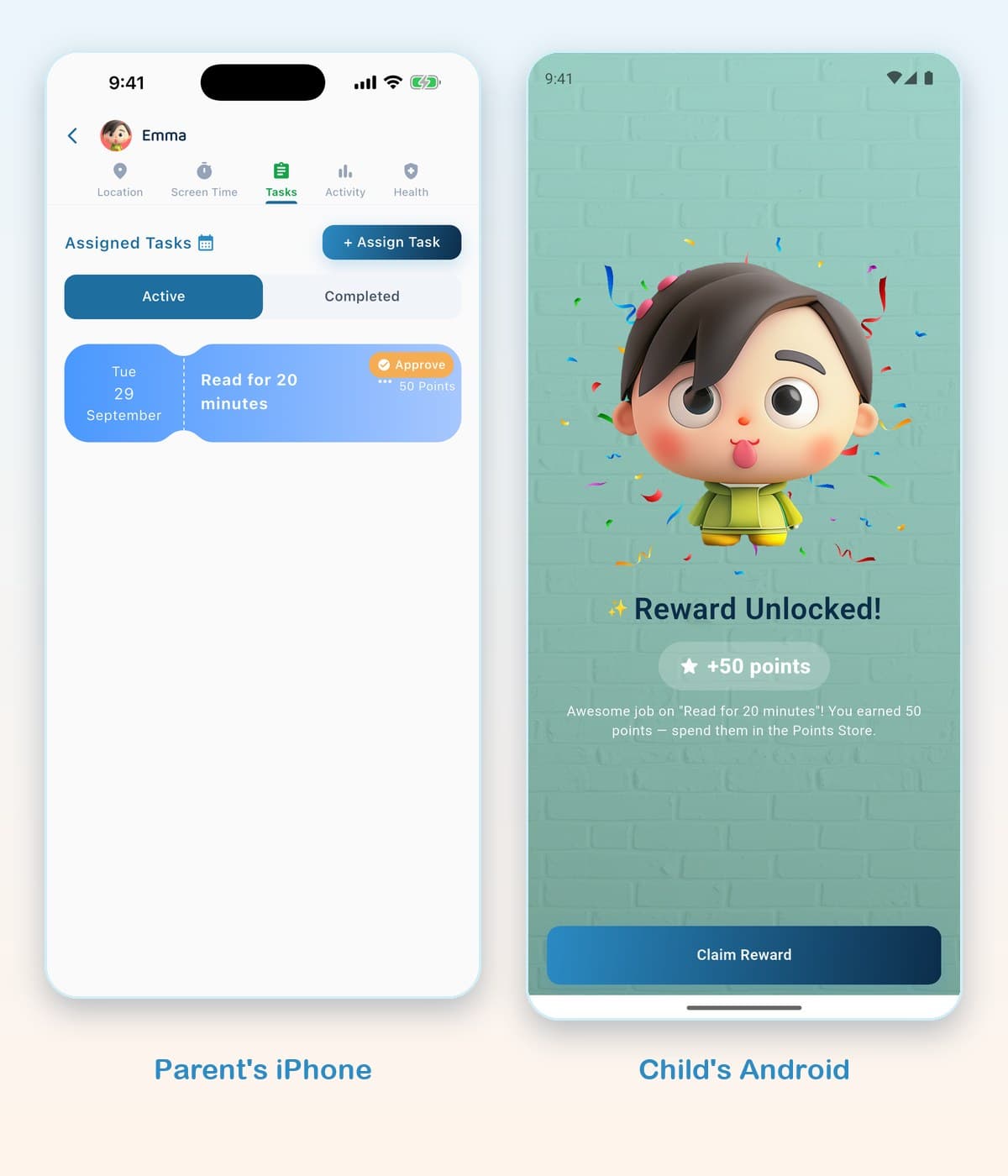
The whole app in one minute
Final Thoughts
Work the list in order: sync, battery optimization, Play Services, clock, user profiles. Those five cover most real-world failures; the rest are design limits worth knowing rather than bugs worth chasing. If the limits enforce fine but keep getting argued down, the missing piece is motivation, not enforcement — that is a tooling choice, not a settings fix. And if your child has an iPhone rather than an Android phone, read does Family Link work on iPhone first.